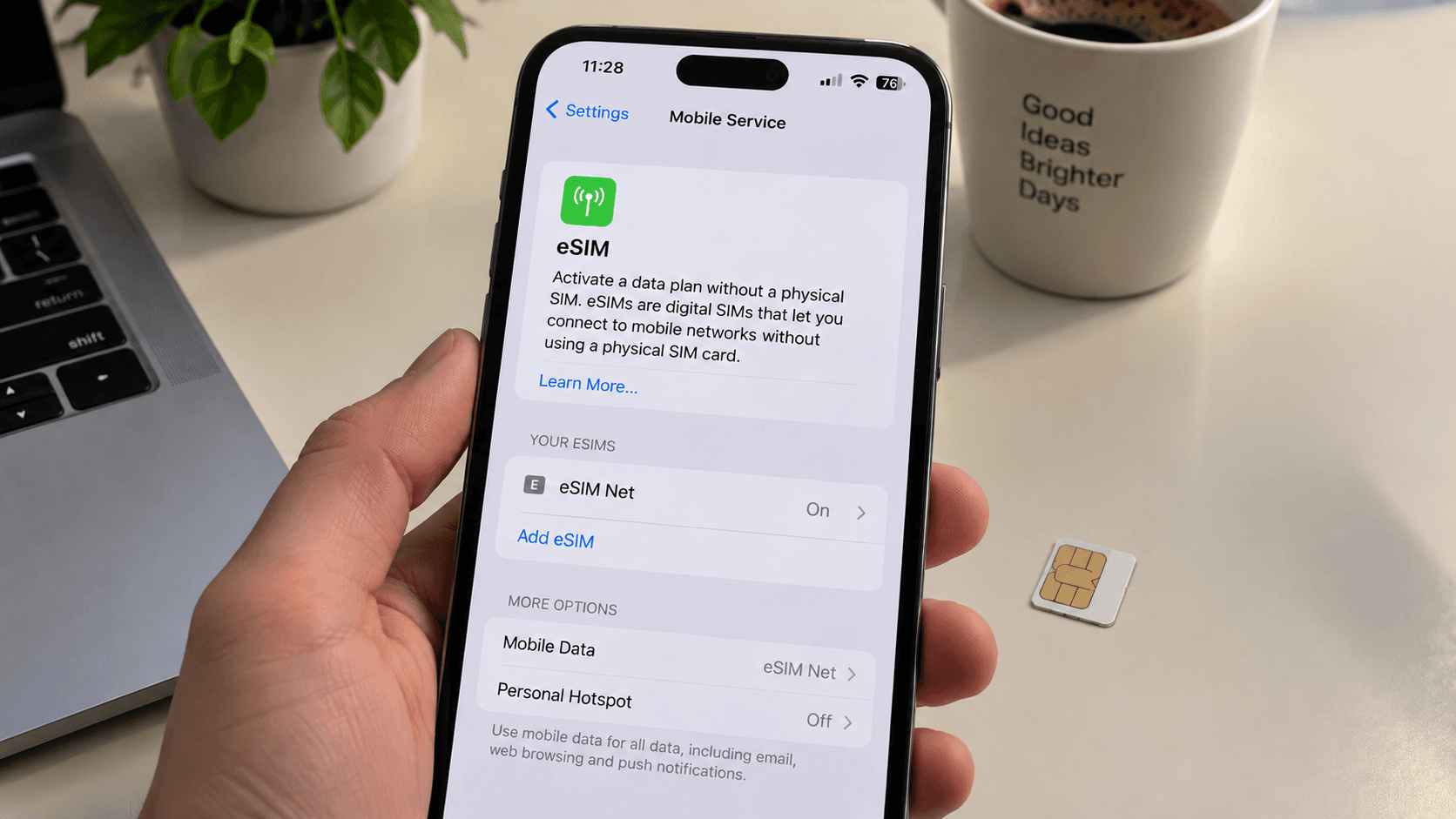
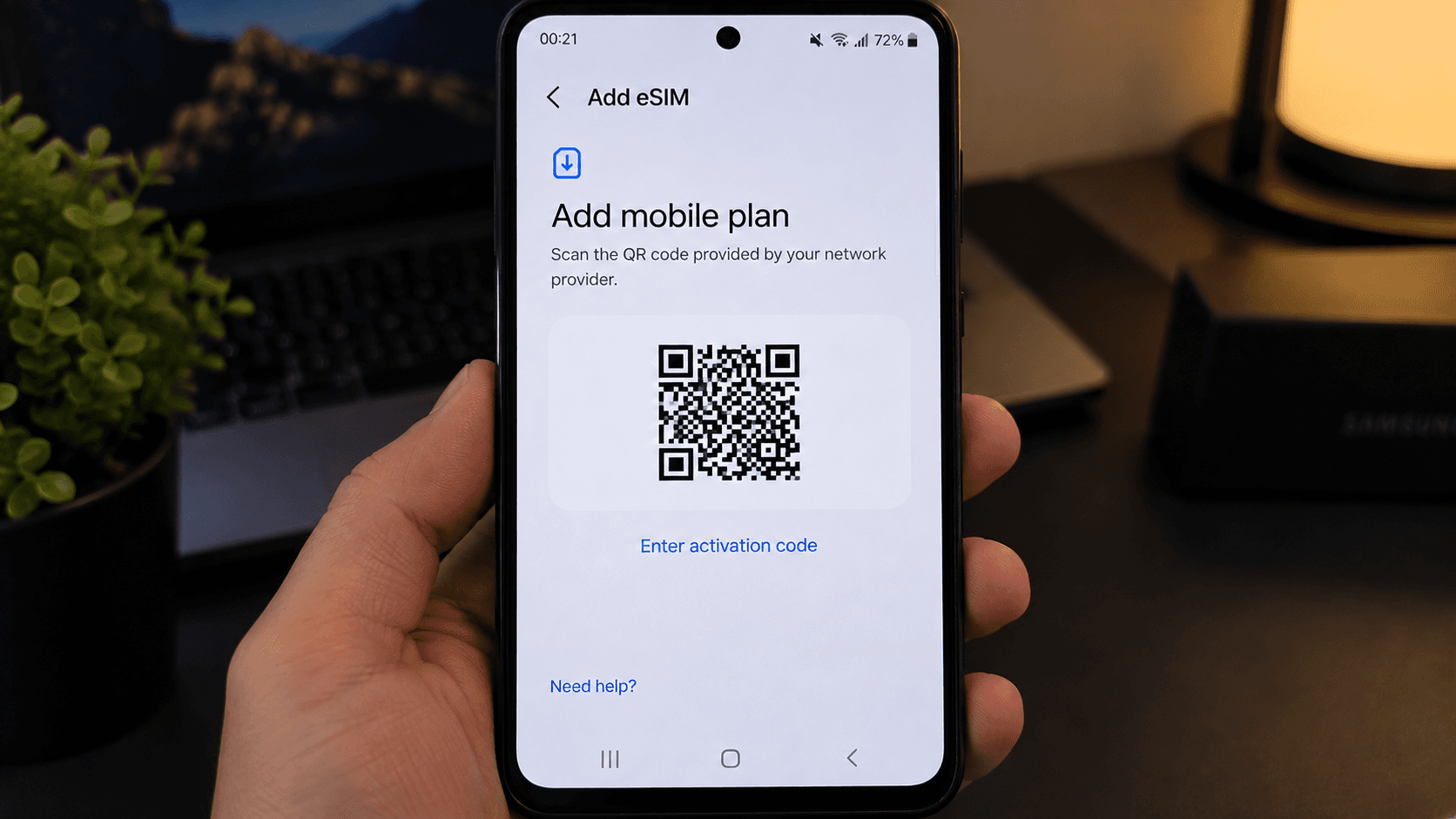
Android is not one operating system so much as a dozen interpretations of one, and each manufacturer names the same screen differently. The sequence never changes, though: find network settings, add a SIM, scan the code, choose what it is for.
Before you start
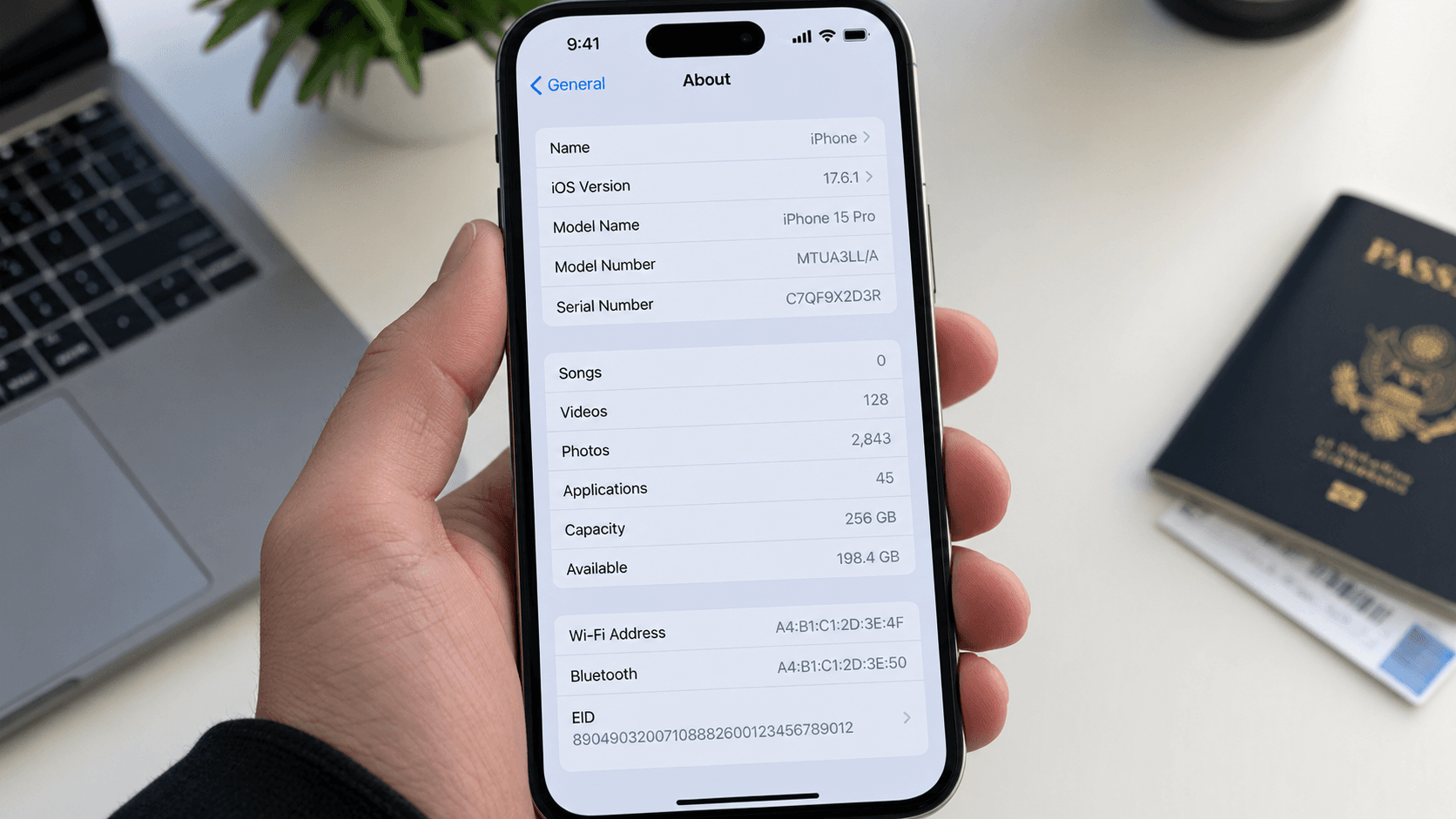
- An eSIM-capable phone — Pixel 3 and later, Galaxy S20 and later, and many recent Motorola, Xiaomi, Oppo and Honor models. How to check yours.
- Wi-Fi, because the profile is downloaded.
- An unlocked phone. Carrier-locked handsets reject other operators' profiles.
- Your QR code on another screen, or the install link open on the phone.
Google Pixel
- Open Settings → Network & internet.
- Tap SIMs, then + Add SIM (or Download a SIM instead?).
- Choose Next to scan, and point the camera at the QR code.
- Confirm when the plan details appear, and wait for the download.
- Name the line something you will recognise later.
Samsung Galaxy
- Open Settings → Connections → SIM manager.
- Tap Add eSIM.
- Tap Scan QR code from service provider and scan.
- Confirm, wait for the download, then Add.
- Give the line a name when prompted.
Other manufacturers
On most others the path is Settings → Mobile network → SIM management → Add eSIM, or Settings → SIM cards & mobile networks. The screens look different; the flow is the same four steps.
Setting it up correctly
Once the profile is installed, two settings decide whether the trip goes smoothly.
- Mobile data → the travel eSIM. This is the line that carries the internet.
- Calls and SMS → your usual SIM. Nobody needs to know you are away, and your verification codes keep arriving.
On Samsung both live under SIM manager → Preferred SIM card. On Pixel they are on each SIM's own settings page.
When you land
- Turn off airplane mode.
- Confirm the travel eSIM is switched on.
- Turn roaming on for the travel line — it uses partner networks.
- Turn roaming off for your home line, unless your plan covers the destination.
- Wait a minute for the first network registration.
If it will not connect
Airplane mode for ten seconds, then a restart, then check that network selection is automatic. If it is still quiet, pick a network manually. The full troubleshooting order is here.
Do not delete the profile while troubleshooting. Deleting is generally irreversible — a QR code is usually single-use — and the problem is nearly always a setting rather than the profile.